Virtual Classroom
Université Laval offers multiple software for virtual classes, each offering various tools and functionalities. Each teacher chooses their own software depending on their course’s specific needs. Most courses use Zoom.
Zoom
Zoom is a remote meeting software application that combines video conferencing, online meetings, chatting and mobile collaboration.
Good to know
- Installing the software is recommended
- The meeting link is sent by the teacher via monPortail
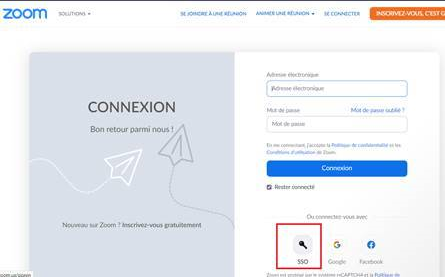
- Before signing in, you have to clicm on Se connecter à l’aide d’une authentification unique (SSO):
- User name: IDUL@ulaval.ca
- Password: PIN
- Access to recordings: determined by the teacher
Installing the software
- Go to https://zoom.us/download
- Click on Download (for Windows and MAC OS X)
- Once the file has downloaded, launch the installation file
For Android or iOS, find Zoom Cloud Meetings in the app store.
All of the information you need to join a meeting is sent to you by your teacher via monPortail.
In most cases, a code provided by the teacher is required to join the meeting.
To avoid any problems signing into the meeting, you must sign out of Zoom and Office.com if you are signed in with an account other than your IDUL@ulaval.ca account.
Steps to follow
- Sign into monPortail and click on the Zoom meeting link found in the session.
- A sign-in window should appear. Click on Sign in with SSO.
- Indicate ulaval for the domain name and click on Continue.
- On the next page, enter your IDUL@ulaval.ca as your user name and click on Next (or click on your IDUL@ulaval.ca if it is already there). You will be redirected to the Université Laval sign in page.
- Enter your PIN (the same one as for monPortail) and click on Se connecter.
- If the teacher has set up a secret code, enter that code and click on Join meeting. You should find the secret code with the link to the session in monPortail.
- Follow the on-screen instructions to activate your camera, microphone, etc.
Depending on how the teacher makes Zoom recordings available, you can access them in 3 different ways.
To avoid any problems joining the meeting, you must sign out of Zoom and Office.com if you are signed in with an account other than your IDUL@ulaval.ca account.
- Sign into monPortail and browse for the link for the recording of the Zoom session you want to view.
- Click on the link provided by your teacher.
- A sign-in window should appear. Click on SSO in the section Or sign in with.
- Enter ulaval in the Company Domain field and click on Continue.
- On the next page, enter your IDUL@ulaval.ca as your user name and click on Next (or click on your IDUL@ulaval.ca if it already exists). You will be redirected to the Université Laval sign-in page.
- Enter your PIN as your password and click on Se connecter.
- If the teacher has set up a secret code, enter that code and click on Access Recording. You should find the secret code with the link to the recording in monPortail.
- The recording should load into your Web browser.
To avoid any problems joining the meeting, you must sign out of Zoom and Office.com if you are signed in with an account other than your IDUL@ulaval.ca account.
- Go to https://ulaval.zoom.us/signin.
- Enter your IDUL@ulaval.ca as your user name and click on Next (or click on your IDUL@ulaval.ca if it already exists). You will be redirected to the Université Laval sign-in page.
- Enter your PIN as your password and click on Se connecter.
- Keep the Zoom page open, do not sign out.
- Go to the Zoom recording session in your course website in monPortail.
- Click on the recording link.
- If the teacher has set up a secret code, enter that code and click on Access Recording.
- The recording should load into your Web browser.
Your teacher may not have used the Université Laval Zoom platform for the Zoom meeting.
In that case, the video file (.mp4) will be available on the monPortail website. It should normally be viewed directly in your video application.
This error usually appears when you aren’t connected with the SSO option. This method is required to access live courses and view recordings.
To change to SSO authentication:
- Close your browser
- Click again on the link in monPortail
- Before clicking on Connexion, select the SSO option (at the bottom of the window)
- If a Company Domain is asked, enter ulaval
- Sign in
- User name: IDUL@ulaval.ca
- Password: PIN
- If the teacher has set up a secret code, enter that code and click on Access Recording. You should find the secret code with the link to the recording in monPortail.
Contact the
tech pros!
APTI Help Desk – Comptoir d’aide APTI (CAA)
418 656-6258
1 844-656-6258 (Canada and United-States toll-free)
Palasis-Prince pavilion, Office 2215
Business Hours
August 31 to December 18, 2026
Monday to Thursday | 8:15 a.m. to 9:30 p.m.
Friday | 8:15 a.m. to 7:00 p.m.
Saturday | 9:00 a.m. to 4:00 p.m.
Sunday | Closed